
Feature Focus: Restart Page Numbering for Each Section

Page numbering has never been easier with Bundledocs. Within this Feature Focus post we will take a look at how to restart page numbering at the beginning of each new section. 

For those that are not aware, Bundledocs automatically paginates/numbers each bundle created - as well as automatically indexing, bookmarking, hyperlinking etc. For users that create multiple section bundles, you may want to restart page numbering at the beginning of each section. With Bundledocs all it takes is the click of a button. Take a look at the steps detailed below or check out our ‘How to Paginate Court Documents’ video to see it in action.
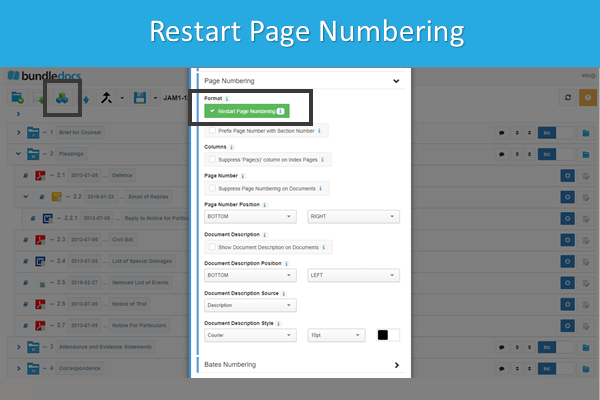
Easily restart page numbering at the beginning of each section

Easily restart page numbering at the beginning of each section

To restart page numbering at the beginning of each new section simply:

  1. Select Generate

  2. Select the '+' next to 'Page Numbering' to expand the ‘Page Numbering‘ section

  3. Select the 'Restart Page Numbering' tick box

  4. Select 'Generate' to complete

Video - See it in Action!

Paginated Bundle - Example

(Let’s take a look at how our completed numbered bundle will appear)

Index Page: Page numbering restarts at the beginning of each new section

Index Page: Page numbering restarts at the beginning of each new section

It really is that simple. Bundledocs automatically produces a fully indexed, sectioned, paginated, bookmarked and hyperlinked bundle in minutes.The example above is a simple index page but you have the ability to customise to suit your requirements. Start your free trial today and give it a try for yourself.

Creating bundles is effortless with Bundledocs. For more information, please see our 'Complete Training Guide' which can be downloaded within your account. Any questions, simply get in contact with our support team today!

Book a Free Online Demo Today!

Feature Focus: Easily Arrange Files within Bundledocs

At Bundledocs we are dedicated to helping our users create high quality professional bundles with ease. In this Feature Focus post, we will highlight some of our top tips for moving folders and documents. Our intuitive software makes the process of moving folders or documents easy - simply drag and drop. 

With Bundledocs, one way to ensure you are inserting documents/sections in the correct location is with dash lines. There are a number of different dash lines - grey, black and yellow. Let's take a closer look at these now...


Grey Highlight

Grey Highlight

Grey Highlight: The grey highlight will appear when you are moving documents or sections into another section. 

Black Dash Line

Black Dash Line

Black Dash Line: The black dash line will appear when you are moving a single or multiple documents from one location to another. Before a document is dropped into place, a black dash line will appear to indicate that the document will be dropped after the highlighted file. 

Yellow Dash Line

Yellow Dash Line

Yellow Dash Line: Similarly, a yellow dash line will appear when you are moving a single or multiple documents from one location to another. Before a document is dropped into place, a yellow dash line will appear to indicate that the document will be dropped before the highlighted file. 

For more information, please see our 'Complete Training Guide' which can be downloaded within your account. Any questions, simply get in contact with our support team today!

Try For Free Today!

Video: Bundledocs Integrates with Box

Bundledocs recently announced our new integration partner Box. Our latest integration will enable Box users to effortlessly upload their documents directly into their bundle. Once uploaded Bundledocs will handle the rest to produce a bundle that is ready to print, save or share. Document bundling made easy.

Take a look at our latest video to see our integration in action...

Seamlessly Integrate with Bundledocs

Video: Bundledocs & Clio Integration

Bundledocs recently announced our new integration with Clio. If you missed the announcement, check out our article 'Bundledocs Integrates with Clio Practice Management Software'.

How will this new integration benefit Clio users? Our latest integration enables Clio users to effortlessly upload their files directly into Bundledocs. Once uploaded, Bundledocs takes care of the rest to produce a fully indexed, paginated, hyperlinked and bookmarked document bundle - ready to print or share. 

See it in action! Take a look at our latest video to see how easy it is to upload documents from Clio directly into Bundledocs...

Seamlessly Integrate with Bundledocs

Video: Bundledocs Integrates with Worldox DMS

Bundledocs have developed a new integration with Worldox document management system (DMS). Our new integration will enable Worldox users to quickly and easily upload documents directly into your bundle. Once uploaded Bundledocs will take over to automatically create a fully indexed, paginated, bates numbered, hyperlinked and bookmarked bundle - ready to print, save and share. 

Check out our latest video to see our Bundledocs Worldox Integration in action...

Integrate with Bundledocs Today!