Video: Create a Free Bundledocs Trial Account

Bundledocs is a complete document bundling solution that helps legal professionals create bundles in minutes. It automates all time consuming activities so creating bundles is effortless. Using Bundledocs means you don't have to worry about creating an index, paginating, hyperlinking... Bundledocs does it all for you. 

Does Bundledocs offer a trial? Yes - and it's completely free. Take a look at our video to see how easy it is to create your 30 Day Trial. Try it for free and see for yourself. 

Any Questions? Get in touch with our Support team today via email or call +353 21 4826320.

Merge Documents with Ease

Bundledocs offers users a wide range of features to help make the process of creating bundles simple. One of these is our 'Merge' function. Utilising this feature enables you to easily merge multiple files into one single document. For those that are familiar with this feature already, don't worry it is also available within our App. 

Let's take a look at how you can effortlessly merge multiple documents within the new Bundledocs App...

1. Click here to select any files you want to merge. All selected documents will appear in red, as shown above. 

2. Select 'Merge'

3. Selected files will merge immediately. Easily re-name by double clicking on the file name or by selecting the 'Edit Details' button. 

Bundledocs App: Arrange Case Documents with Ease

Create the perfect bundle in minutes

Bundledocs recently launched a new app so you can effortlessly build bundles directly from your smartphone or tablet device. This is great for busy legal professionals on the move as you can access, amend or even create complete bundles on the go. 

For those familiar with our desktop solution you will be aware that moving documents within Bundledocs is done by simply dragging and dropping. This is great as it enables you to arrange and re-arrange documents with ease. 

Want to learn how to move documents within the Bundledocs App? Follow these 3 steps...

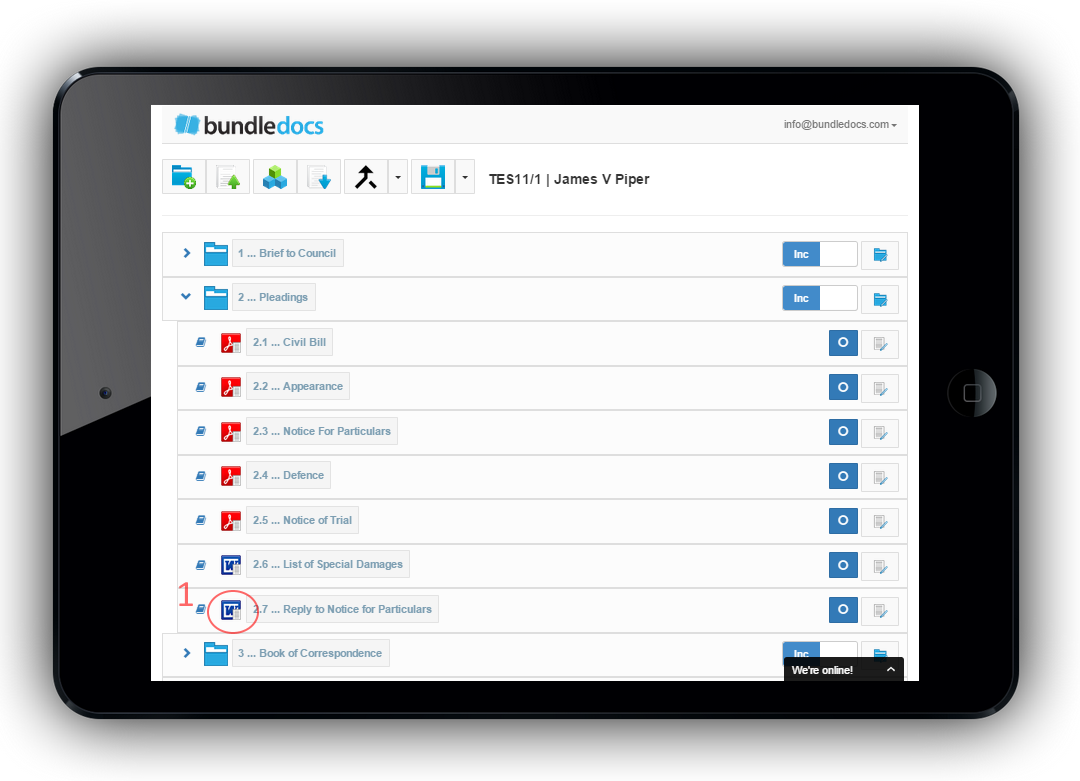
Step One: Within the Bundledocs App you must use the File Type icon to move documents. Simply select, for example the Word logo, as highlighted above. 

Step Two: Drag the document to the correct location. Note: A blue dash box will appear highlighting the area in which the document will be dropped.

Step Three: Drop the document in place. Remember to press 'Save' to automatically update the document ordering. 

Bundledocs App: Upload from Any Device

Bundledocs recently announced the development and launch of a new app to compliment their powerful document bundling solution. The new App offers all the same features and functionality as their Desktop solution, now direct from your smartphone or tablet device. Effortlessly preview, amend or even create complete document bundles on the go. 

To get started creating your bundle, you will need to access and upload case documents. Let's see how this can be done...

1. Select 'Choose Documents to Upload' to search locally for case documents. This is great when using devices such as the Microsoft Surface Pro. 

2. Alternatively, access documents from a number of our integration partners such as: Dropbox or Box. Simply choose the relevant third party app and search for case documents. 

Feature Focus: Preview Case Documents

Quickly & easily review case documents with the click of a button

Within this Feature Focus post we will highlight our 'Preview' feature. This enables you to quickly and easily review case documents. This is great when a number of team members are working on a bundle. For example: The bundle producer will be able to easily review the organisation of documents carried out by other team members, support staff etc. All with the click of a button. 

Remember, our Preview feature works regardless of whether you are using a Desktop/Laptop or your Mobile/Tablet Device. Let's see how it works...

Desktop/ Laptop: 

1. For those using Bundledocs on their Desktop or laptop, double-click the File Type Icon.

2. A preview window will then appear, as shown above. 


Bundledocs App (Mobile/ Tablet Device): 

1. Easily preview any uploaded document within your Bundledocs account. Simply select the 'Preview' button. This is located to the left of each uploaded file, as shown above. 

2. Once selected, the preview window will automatically appear. Effortlessly scroll through the document, downloaded or even print. 

Top Tip: Remember, Bundledocs automatically creates a PDF of any file uploaded. So regardless of whether its a word, excel, image, email etc. you will be able to immediately preview or even download a PDF copy.