Bundledocs integration with Partner for Windows just got better

Exciting News for All Bundledocs and Partner for Windows Users...
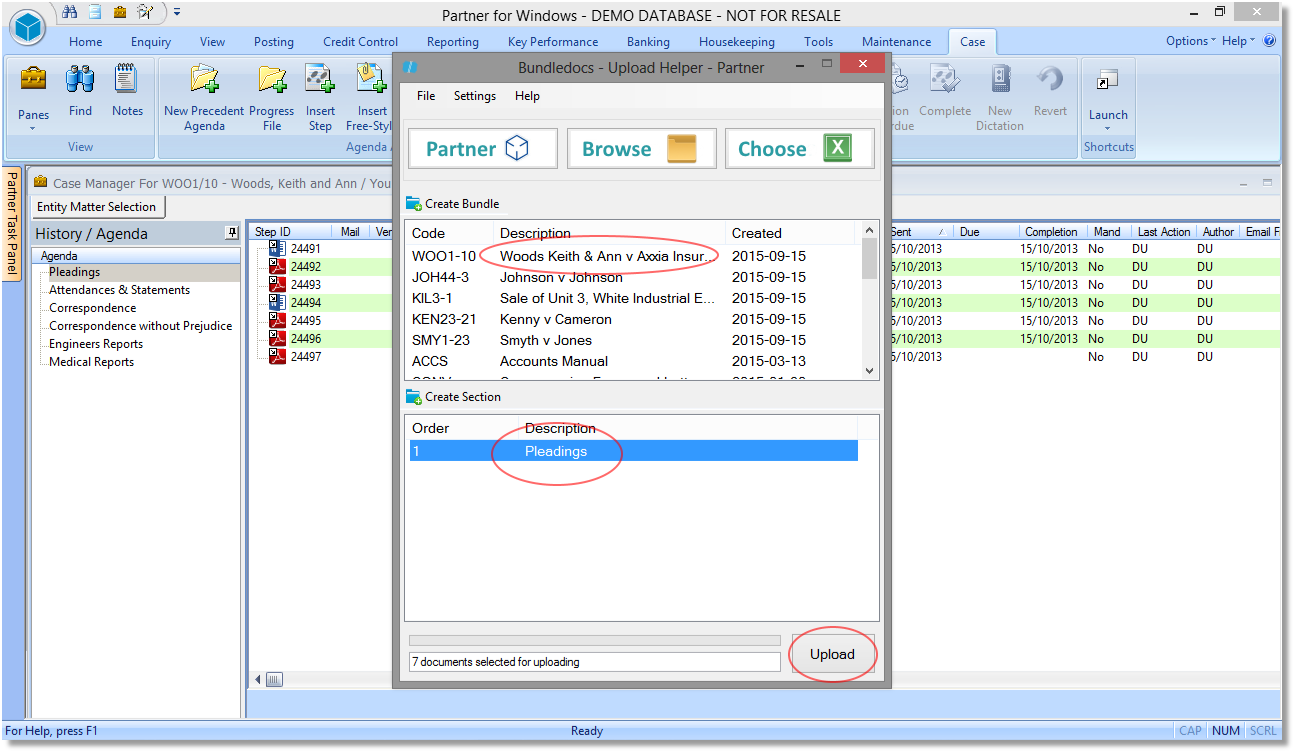
Bundledocs, a Tikit P4W partner, are pleased to announce that we have developed an even more seamless integration between Partner for Windows and Bundledocs. This unique tool enables you to seamlessly upload files directly from Partner for Windows into Bundledocs. The enhanced Bundledocs Upload Helper is simple and intuitive to use and helps make the process of building briefs effortless. With the Bundledocs Upload Helper users can not only upload but also rename case documents, create new bundles or even sections. 

At Bundledocs we are dedicated to helping our clients. As such, the new Bundledocs Upload Helper is completely free and has been designed purely to make the process of building briefs even easier for our clients. The Bundledocs Upload Helper is available now so simply get in touch with our team to get started.

For those that want to learn more we will be posting every day this week to help you get familiar with our new tool. If you can't wait until then simply get in touch with our team and we will send you our Bundledocs Upload Helper User Guide, which covers everything you need to know to get started.

Get the New Upload Helper Today!

Q&A: Can I select certain pages from a PDF if I don't want all of them to appear in my bundle?

Question: Does Bundledocs provide a facility where you can select pages from a PDF document if you do not want all of them to appear in the bundle you are creating?


Answer: Yes. Bundledocs makes creating bundles simple. We know that even when documents are uploaded you may still need to make adjustments. Using our 'Page Range' or 'Split Range' features you can customise any uploaded file so only the relevant pages are included within your final completed bundle.

In today's post we will highlight the 'Page Range' feature. Unlike the Split Range feature, no additional documents are created, Bundledocs simply excludes any irrelevant pages (based on your specification). 

Let's take a closer look at how this works...

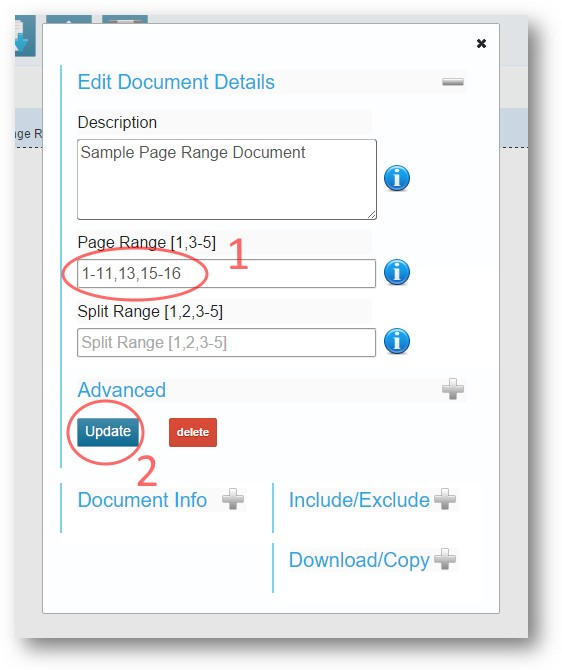
1. Upload your document into Bundledocs. Select the 'Edit Details' icon which is located to the right of your document. 

2. Once selected, a window will appear. Within the 'Page Range' field, you can specify which pages you would like to appear within your completed bundle. Within this example, I want to exclude pages 12 and 14 from my bundle. Therefore, within the Page Range field I will choose the range 1-11,13,15-16. (Do not use spaces when specifying your range). Select Update to complete. 

That's it. You can even preview your document and make sure it is exactly how you want it to appear. Simply double click the file type icon, as shown above, to preview. 


For full details of all Bundledocs features, download our Manual within your Bundledocs account. 

Try for Free - 30 Day Trial

Feature Focus: Easily Expand/Collapse All Bundledocs Sections

At Bundledocs we are continually enhancing our product and service offering to help our users seamlessly produce bundles with ease. In our latest Feature Focus post, we will highlight our new Expand/Collapse feature. 

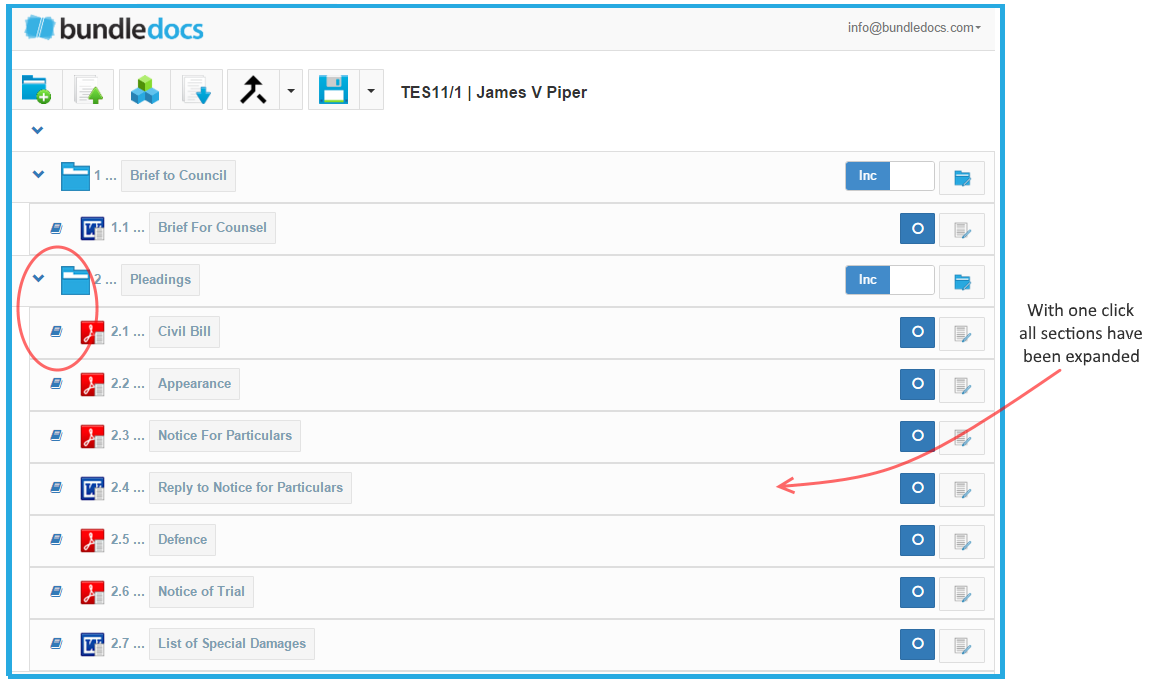
The new Expand/Collapse feature is great for those that work with large bundles or any bundle with multiple sections. Currently available within the Bundledocs App, this new feature enables users to effortlessly open or even close all open tabs - all with the click of a button. 

Want to open all sections within your bundle at once? With the new Expand/Collapse feature now you can. Simply select the button, as highlighted above. This will open all sections and reveal the documents and files that are currently included within. 

Similarly, if you need to close all open sections at once, this can be done using the same step. Simply select the Expand/Collapse button. All open tabs will immediately close. It really is that simple. 

Don't just take our word for it. Login to your Bundledocs App account today to see for yourself!

Login to Bundledocs Today!

Feature Focus: Forwarding Bundles to Counsel Just Got Easier

With Bundledocs 'Forward Bundle to Third Party' working with counsel or any third party has just got easier. For those that are unfamiliar, our 'Forward Bundle to Third Party' feature enables you to securely forward your bundle directly to any third party - whether that is a colleague, another practice, counsel etc. That's not all. It also works great if bundles are too large to send via email. 

At Bundledocs we are dedicated to continually developing our solutions to best meet the needs of our users. Recently, we introduced a new feature to help make sharing bundles with third parties even easier. Our latest enhancement enables you to auto-generate a secure password for your bundle. Don't worry, you can still use your own password if you wish. Let's take a closer look...

Want to auto-generate a secure password for your bundle? No problem. Simply select the icon as highlighted above.

This new feature enhancement is also available for our Bundledocs App users. Simply select the icon, as shown above, to produce a unique password for your bundle.

Interested to learn more? Our complete training guide covers everything you need to know about Bundledos. Simply login today to download a copy.

Find out More about Bundledocs

Effortlessly Apply a Watermark to your Bundle

Bundledocs are pleased to announce that we have enhanced our watermark feature within our latest release. At Bundledocs we are continually developing our features to help our users produce high quality professional bundles that suit every requirement. As such, within our latest release we have further developed our watermark feature so it is now possible to upload a custom watermark image to your bundle. This can be done in only a few steps, let's take a closer look...

Effortlessly apply a watermark image to your bundle. Simply 1) choose to apply a watermark to your bundle and then 2) select 'Choose Watermark' to upload your image. It really is that simple. Even better, you can include/exclude your watermark, at any time and at no extra cost.

New to Bundledocs? If you are new to Bundledocs then please take a look at our '5 Steps to Create a Bundle' video. This will give you an overview of the simple steps needed to create a high quality professional bundle in minutes. Take a look now!

Free 30-day trial - Sign up today