Creating Electronic Closing Binders using NetDocuments DMS

Bundledocs electronic closing binder software makes creating closing binders simple. Our incredibly intuitive and powerful integration with NetDocuments DMS ensures that you can access your documents instantly and create your electronic closing binder regardless of where you are. Ready to see how Bundledocs makes creating electronic closing binders simple - then keep on reading…

Creating_Electronic_Closing_Binders_using_NetDocuments_DMS_and_Bundledocs.png

BUNDLEDOCS IS A NETDOCUMENTS PARTNER

Bundledocs electronic closing binder software is the one tool you need for the creation and delivery of closing binders. It handles everything from document collation, document manipulation, sharing and collaboration, OCR, redaction and annotation. It’s incredibly easy to use so you can ensure your binders are prepared in an instant!

Did we mention we’re fully integrated with NetDocuments DMS? Our partnership with NetDocuments helps deliver a true cloud integrated solution. Global law firms can securely access their NetDocs files and collaboratively build electronic closing binders, bundles, booklets and briefs from anywhere - on any device.

HOW TO CREATE AN ELECTRONIC CLOSING BINDER FROM NETDOCUMENTS
Here are the steps you need to create electronic closing binders using NetDocuments:

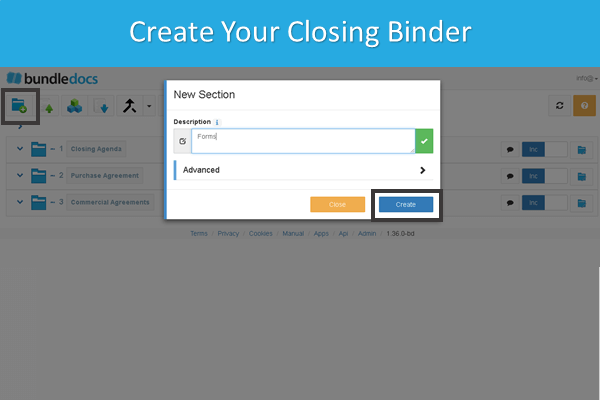
  1. CREATE YOUR CLOSING BINDER.

    Begin by creating your closing binder - give it a name and title. Once this is done you are ready to create folders, sub-folders or volumes for your binder. There is no limit to the number of folders so create as many as you need.

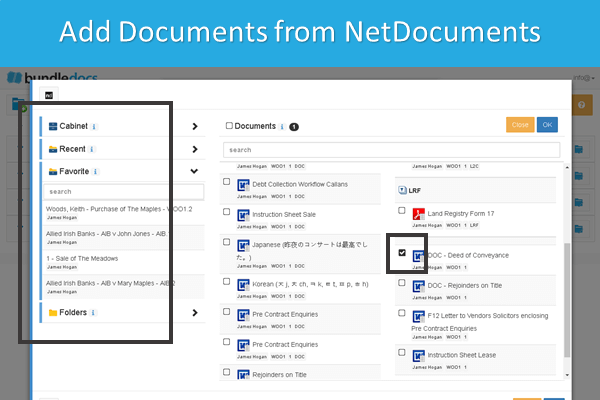
  2. ADD DOCUMENTS FROM NETDOCUMENTS DMS.

    Once you have created the structure for your binder, you are ready to begin uploading your transactions and binder documents. If you us NetDocuments as your DMS then our integration will make this process so much easier. Here is a quick video that shows how this is done: Upload Documents from NetDocuments into Bundledocs.

    Don’t worry if you don’t use NetDocuments to store your documents. You can easily access documents regardless of where they are stored. For example, upload from your local pc or c-drive, dropbox, or check out our integration partners to see what other systems Bundledocs links with.

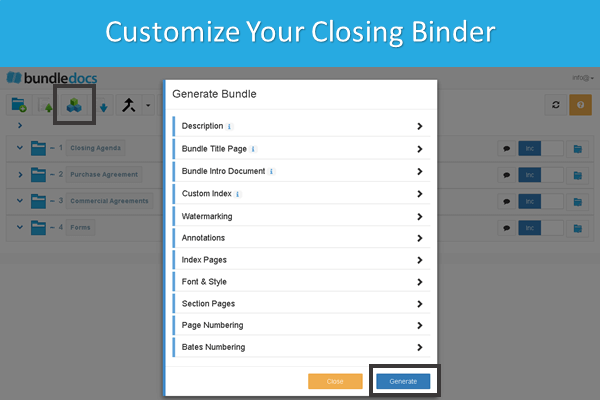
  3. CUSTOMIZE YOUR CLOSING BINDER.

    Once you have uploaded your documents from NetDocuments into Bundledocs, you’re ready to begin ordering and formatting your binder. Bundledocs offers a range of features to make sure your binder is created just how you want it. For example:

    1. Order your Documents: Now that you’ve added your NetDocs documents, you can easily amend the ordering so they appear just as you like. Watch this quick video to see how to easily move Bundledocs documents.

    2. Add a Custom Cover Page: Bundledocs automatically generates a simple cover page, however you also have the option to upload a custom cover page for your binder.

    3. Add a Custom Index Page: If you didn’t know already, once you click the ‘Generate‘ button, Bundledocs will automatically merge all your files into a single PDF document and automatically create your index page for you. There are a range of options available so you can customise how your index page appears . Alternatively, you also have the option to upload your own custom index page. Interested to learn more? Get in touch with our support team for more information.

    4. Amend Page Numbers: Bundledocs will automatically number each page of your binder. This is fully customisable and you can even completely remove page numbers if you prefer - and all with the click of a button.

    5. Choose an Export Format: By default, Bundledocs will automatically export your finished closing binder in PDF format. However, as you have complete control you can even export in a zip file if you prefer. That way you can include all the converted PDF files or the documents in their original format.

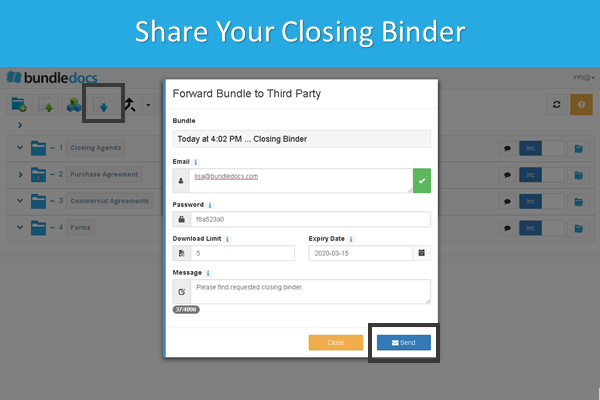
  4. SHARE YOUR BINDER ELECTRONICALLY WITH OTHERS. Now that you’ve formatted your closing binder to appear just as you like, all that’s left to do is click the generate button. This button is magic and with a single click your binder is ready. Within Bundledocs you can download to your desktop to print or even securely share with anyone that needs a copy.

TRY CREATING AN ELECTRONIC CLOSING BINDER WITH BUNDLEDOCS

Bundledocs electronic closing binder software makes the process of creating professional closing binders simple. Don’t just take our word for it. We offer a free online demonstration and a no-obligation free trial so you can try for free and see if it suits your requirements.

Remember, Bundledocs is a 100% cloud based software so you can link to NetDocuments directly from Bundledocs. Have a hosted version? Get in touch with Bundledocs Support and we can help get it setup for you.

Bundledocs New Feature Release - February 2019

Our development team have been hard at work developing a game-changing feature, we know you’re going to love! Today we will give you an exclusive sneak peak into how it all works. Intrigued? Then keep on reading…

Bundledocs_New_Feature_Release_Development_2019.png

Introducing Bundledocs Custom Index

We are thrilled to bring you our latest feature release - custom index pages. This will be a game-changer for anyone who wants to create bundles, binders or booklet with their own house styles and branding.

How will it help? It allows you to create a custom index for your bundle and format it exactly how you like. Of course, our simple to use index features still exist but this latest enhancements gives you the option to do so much more - if you need to.

With the new custom index page(s) you can use your own house style, custom formatting, include your title page contents and table of contents on the same page etc. It’s all possible with Bundledocs!

Interested to see how it works? We will cover all in our upcoming webinar (keep your eyes pealed for an announcement) or if you can’t wait until then get in touch with our team. We will be thrilled to show you how it works or give you a Custom Index User Guide so you can try for yourself.

New Video Alert!

We know that reading through manuals isn’t for everyone. We are here to make your life easier so we want to show you how Bundledocs works in a way that’s quick and easy.

Over on our YouTube channel we have a wide range of videos already created. They cover everything from how to upload documents from your DMS, to working with third parties, to templates.

This year we have already released some great little videos - and they’re all only about 2 minutes long. In case you haven’t had a chance to check them out yet, here’s a recap:

  • Moving Documents Made Easy. Did you know you don’t have to just drag & drop to move documents in Bundledocs. Over the years we’ve launched a number of different ways. Especially great for anyone that works with large bundles or binders. Watch it now.

  • Combine and Merge Files. If you’ve upload a few documents and want to merge them into one single document before generating then this ones for you. You will be surprised at how easy it is. Watch it now.

  • How to Create a Trial Bundle. If you missed our latest post ‘Trial Bundle Preparation Made Easy‘ then you may not have seen our latest video that takes you through the steps to create the perfect trial bundle in minutes. Watch it now.

If you don’t already follow us on YouTube, Twitter or LinkedIn then make sure you do. That way you won’t miss a thing!

Another Note for your Diary

This year is already shaping up to be a busy one for all of us at Bundledocs HQ. If you missed our announcement, we will be sponsoring the upcoming British Legal Technology Forum 2019 in March. Following on from this, we are delighted to reveal that our travels do not end there. We will be heading to Amsterdam to showcase at LEXPO’19 on April 8th and 9th.

Will you be heading to LEXPO this year? Check out our announcement post to see where you can find the Bundledocs team on the day.

Preparation of Court Bundles for Family Proceedings

If you need to create a court bundle for family law proceedings, then you’ve come to the right place. Bundledocs has everything you need to prepare, format and lodge your family law bundle. Ready to see how it works?

Prepare_Court_Bundle_Family_Proceedings_Practice_Direction_27a.png

Paper Bundles or Electronic Court Bundles

One of the best things about Bundledocs is that you don’t have to choose to create an electronic court bundle or a paper bundle - you can have both. As a 100% cloud based product all bundles created using Bundledocs will be immediately available in electronic PDF format. However, if your court requires bundles to be lodged in paper format then that’s possible too. It’s simple - just print!

In some cases, there may be a limit to the number of pages or sheets of A4 paper that are included in either your electronic court bundle or your paper bundle. With Bundledocs you don’t have to go counting pages, we do this for you so you can see at-a-glance how many pages are included in each section of your bundle.

Don’t believe us? We offer a free 30-day trial so you can try for free and see.

Format of the Court Bundle

When it comes to formatting your court bundle, Bundledocs court bundle software has a wide range of features to make it simple to customise your bundle so it looks just right. If you’re unsure what needs to be included in your bundle, how it’s formatted or how it’s ultimately logged then make sure to check out your courts practice directions. For example, the www.justice.gov.uk website contains Practice Direction 27A that outlines the court bundle requirements for family proceedings.


Unable to view? Watch now on YouTube - Create a Trial Bundle in Minutes


Add documents: With Bundledocs you can upload all the key documents relevant to your bundle. There is no document limit and most files types are supported. Including word documents, PDF, emails, images, maps etc. Plus, if your bundle requires your documents to be created in a specific font type or line spacing, this can all be done before uploading your documents into Bundledocs.

Read More: What types of files and documents does Bundledocs support?

Arrange your bundle in order: You can easily arrange your documents in chronological order i.e. in accordance with the time sequence in which they occurred. Bundledocs makes moving documents easy and it all can be done by simply dragging and dropping your files into place.

Video: Moving Bundledocs Documents Made Easy

Add sections: Each bundle can be divided into separate sections. With Bundledocs you can create as many sections and sub-sections as needed.

Index your bundle: Most bundles now require that an index page is included at the beginning of the bundle that lists all items in your bundle. Bundledocs automatically creates your index page and it’s fully customisable so it appears just as you like it.

Paginate your bundle: When preparing your bundle you will need to make sure it is paginated i.e. your pages are numbered correctly. Each page can be numbered individually and consecutively starting at Page 1. Bundledocs automatically handles pagination so your bundle is fully numbered with a single click. You can customise to suit and if any changes are needed, you simply re-generate and the page numbers are automatically updated.

How To: Restart page numbering for each section

Lodging the Court Bundle

One of the most important things to remember when preparing a court bundle for family proceedings is that it’s lodged and submitted to the courts on time. Regardless of whether you choose to print your bundle, send it to the court by post, DX, courier or provide it electronically. Again, refer to practice directions to see what methods are acceptable.

Does Bundledocs offer a way to share a paginated index to all parties before the hearing? Yes! Bundledocs offer a paperless way to easily share your paginated index with third parties, other side council etc. Check out our ‘Securely Send the Index Page to Other Side Counsel’ post to discover how this is done.


Interested to learn more about Bundleodcs? Get in touch today to arrange your free online demonstration or start your free 30-day trial today and give it a try for yourself.

Create a Bundle from your iManage Workspace

Did you know you can instantly create a complete bundle directly from iManage? So whether you use iManage FileSite, DeskSite or iManage Work, it’s all possible.

Create_Bundle_From_iManage_Workspace.png

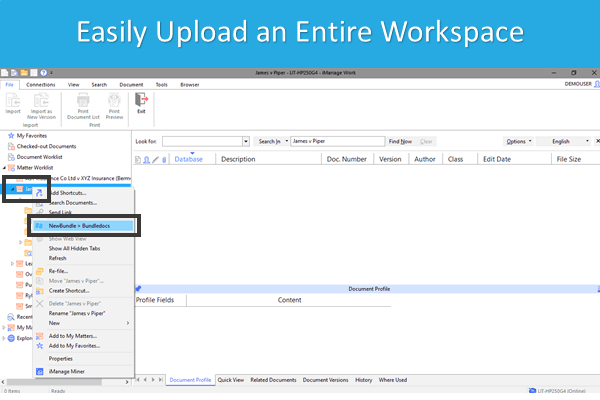
It’s true. With Bundledocs you can create complete bundles directly from your iManage workspace. This will automatically pull in any folders, sub-folders and documents you have contained within your Workspace. With just a few clicks you can replicate your complete workspace into a Bundledocs bundle.


Bundledocs, an iManage integration partner, makes it simple to create a bundle, binder or booklet directly from your iManage workspace. Here’s how it works…

  1. Simply right click on the workspace, for example, ‘James v Piper’.

  2. From the options, select ‘NewBundle > Bundledocs’.

    Note: If you have yet to login to Bundledocs, you will be initially prompted to provide your Bundledocs username and password.

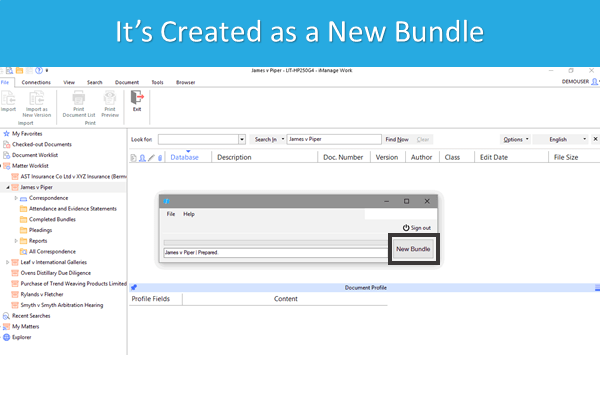
  3. From the window, select ‘New Bundle’. This will automatically begin to reproduce your workspace within Bundledocs.

That’s it. Access your Bundledocs account via app.bundledocs.com. Within your account, a new bundle will be automatically created based on your Workspace. This will include your workspace folders, sub-folders and documents. Now that the hard work is done, you are free to customise your bundle as you like. Simple!

If you’re interested to learn more about Bundledocs and our integration with iManage, get in touch today. We can arrange a free online demonstration or trial so you can see how it works.

How Do I Create A Document Set from NetDocuments?

It’s hard to believe that so many law firms around the world still produce document bundles and document sets manually. Why so when there are awesome tools like Bundledocs available that do all the hard work for you. In today’s post we’re going to show you just how easy it is to create a document set in minutes. Interested to learn more, then keep on reading!

How_To_Create_A_Document_Set_Using_NetDocuments_DMS.png

What is a Document Set?

Before we jump into how to create a document set, let’s first address what it is. In short, a document set is simply a group of related documents. For lawyers and attorneys when compiling a casefile they will need to gather all related and relevant documents together into a document set and easily print and distribute it to others.


How Do I Create a Document Set?

Bundledocs, a NetDocuments Binder Integration Partner, makes creating document sets easy. Want to create a document set online? Here’s are the 4 steps you need to know…

  1. Create your document set. To create your document set just click the ‘New Bundle‘ button. Once created you can easily create a single/multiple folders for your set.

  2. Gather documents from NetDocuments. Bundledocs seamlessly links with NetDocuments to make it simple for you to access your documents from anywhere. Choose what documents you want included and they will be instantly added to your document set. You can even easily arrange documents by dragging and dropping - or with a single click!

  3. Generate your document set. When you are ready to compile your document, hit the ‘Generate’ button. This will collate all your document into a single set. You can even customise the look and feel to make sure it’s just right!

  4. Download or securely share with others. That’s it. Your document set (including all your NetDocuments files) is instantly available. The final set is available as a single PDF. A hyperlinked index is created, it’s fully bookmarked and each page is automatically paginated too. What could be better!

Remember, the best thing about Bundledocs is it’s fully customisable and making changes is simple. Need to remove page numbering? Want to change your index page or remove entirely? It’s all possible and can be done in an instant. Easy!

NetDocuments Cloud Partner

Did you know Bundledocs is a long-standing NetDocuments partner? As a 100% cloud tool we love connecting and partnering with other cloud providers. Our integration with NetDocuments makes it simple for you to create document sets online anywhere, any time, from any device.

If you’ve any queries about linking NetDocuments and Bundledocs, then get in touch. Or why not check out our short - Bundledocs Integration with NetDocuments video - to see it in action!


Ready to Create a Document Set with Bundledocs?

Building bundles and document sets is made easy with Bundledocs. Don’t believe us? Why not take advantage of our free 30 day trial and give it a try for yourself. Get started today!